



In recent versions of Windows it’s possible to disable hibernation/sleep for all modes (on battery and plugged in) using only the command line, since only some related settings are available in the Control Panel. To perform the necessary configurations, follow the steps below:
Open a PowerShell (Windows Terminal) as Administrator by pressing Win + X.

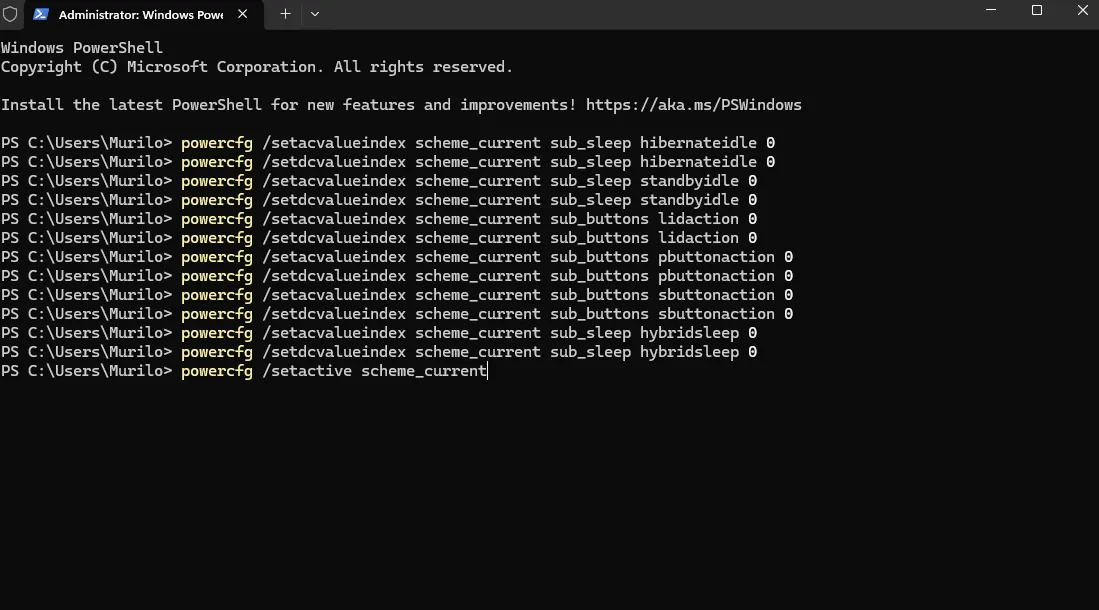
Enter the following commands:
powercfg /setacvalueindex scheme_current sub_sleep hibernateidle 0powercfg /setdcvalueindex scheme_current sub_sleep hibernateidle 0powercfg /setacvalueindex scheme_current sub_sleep standbyidle 0powercfg /setdcvalueindex scheme_current sub_sleep standbyidle 0powercfg /setacvalueindex scheme_current sub_buttons lidaction 0powercfg /setdcvalueindex scheme_current sub_buttons lidaction 0powercfg /setacvalueindex scheme_current sub_buttons pbuttonaction 0powercfg /setdcvalueindex scheme_current sub_buttons pbuttonaction 0powercfg /setacvalueindex scheme_current sub_buttons sbuttonaction 0powercfg /setdcvalueindex scheme_current sub_buttons sbuttonaction 0powercfg /setacvalueindex scheme_current sub_sleep hybridsleep 0powercfg /setdcvalueindex scheme_current sub_sleep hybridsleep 0powercfg /setactive scheme_current
Note: Below you will find the .ps1 file containing these commands along with explanatory comments, in case you want to execute them in bulk.
https://monitoo.com.br/media/media/download/desativar-suspensao-hibernacao.ps1
Great! Thanks for your feedback.
Tell our team what was missing: contact support on WhatsApp.
