



If, after installing Monitoo, the machine name does not appear in the app.monitoo dashboard, the issue may be related to some common causes.
Possible causes:
Machine name longer than 15 characters:
Monitoo follows the standard Windows limitation, which recognizes only the first 15 characters of the computer name. Longer names may prevent proper registration.
Duplicated machine name:
Monitoo does not register machines with the same name. Each device must have a unique name to be properly identified on the platform.
WMI (Windows Management Instrumentation) failure:
If the WMI service is corrupted or malfunctioning, Monitoo may be unable to collect the necessary system information.
Recommended solution:
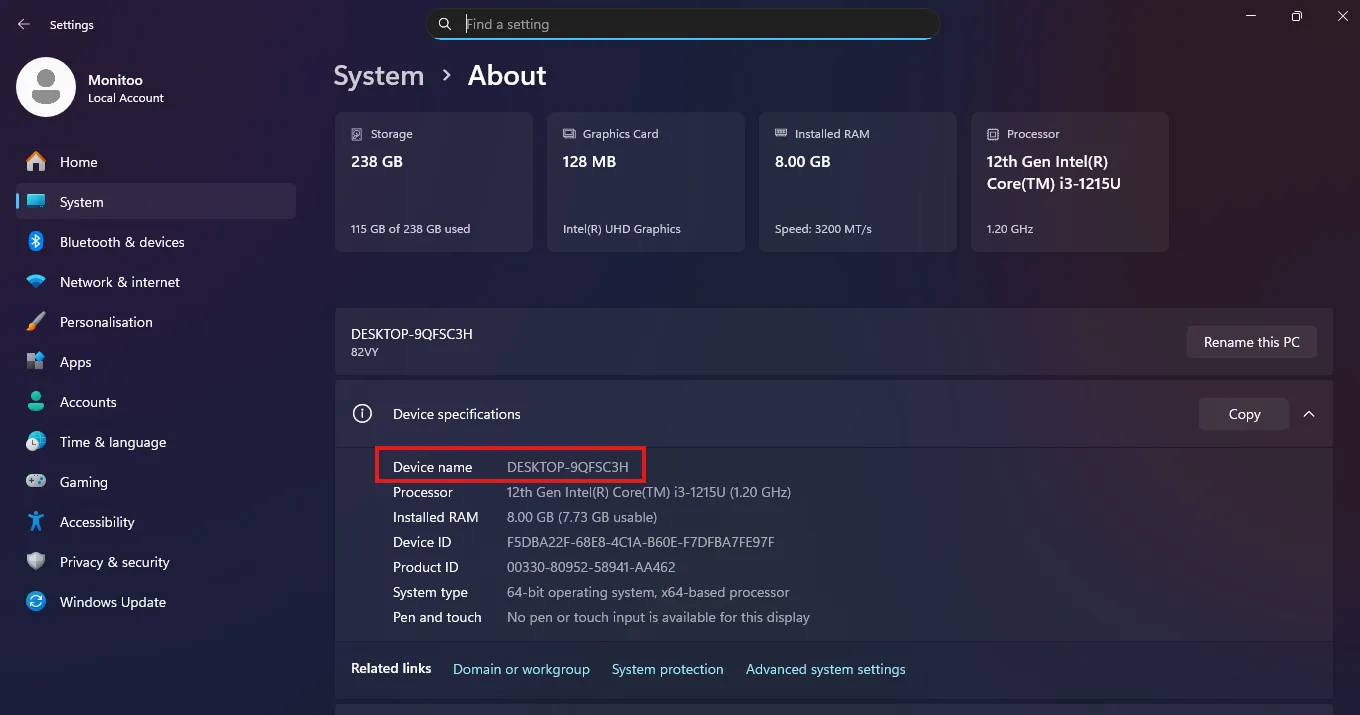
Check the computer name in: Control Panel → System → Computer Name.
If it has more than 15 characters, rename it and restart the machine.
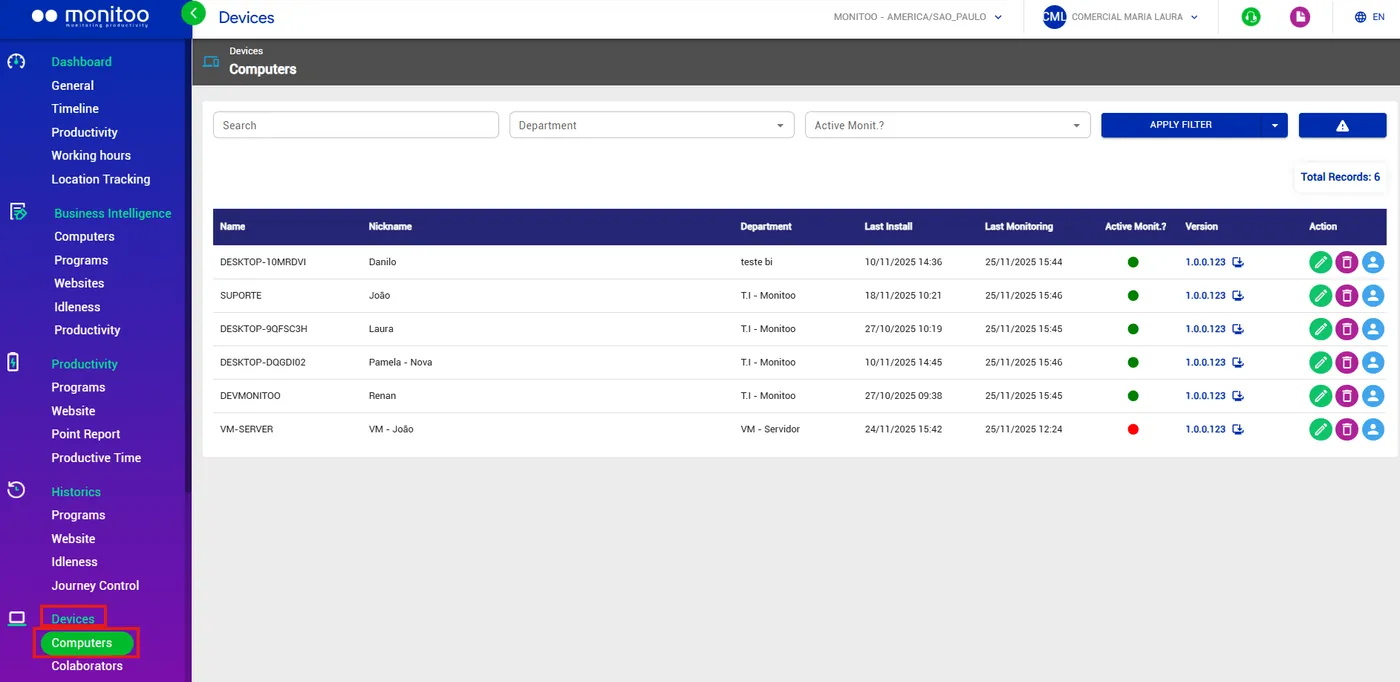
Confirm that no other device has the same name in Devices → Computers in app.monitoo.
If the issue persists, try repairing WMI by following the documentation below:
Great! Thanks for your feedback.
Tell our team what was missing: contact support on WhatsApp.
