



In Monitoo, you can make bulk changes to the data of the employees registered on the platform. This feature makes it easier to update information for multiple employees at the same time, so you don’t have to make the changes one by one.
To do this, you need to export your employees to an Excel spreadsheet, fill in or change the desired information, and then import the file back into Monitoo.
To start the process, go to:
Devices > Employees
Then export the employees to an Excel file.
The exported spreadsheet will be used as the basis for making the necessary changes.
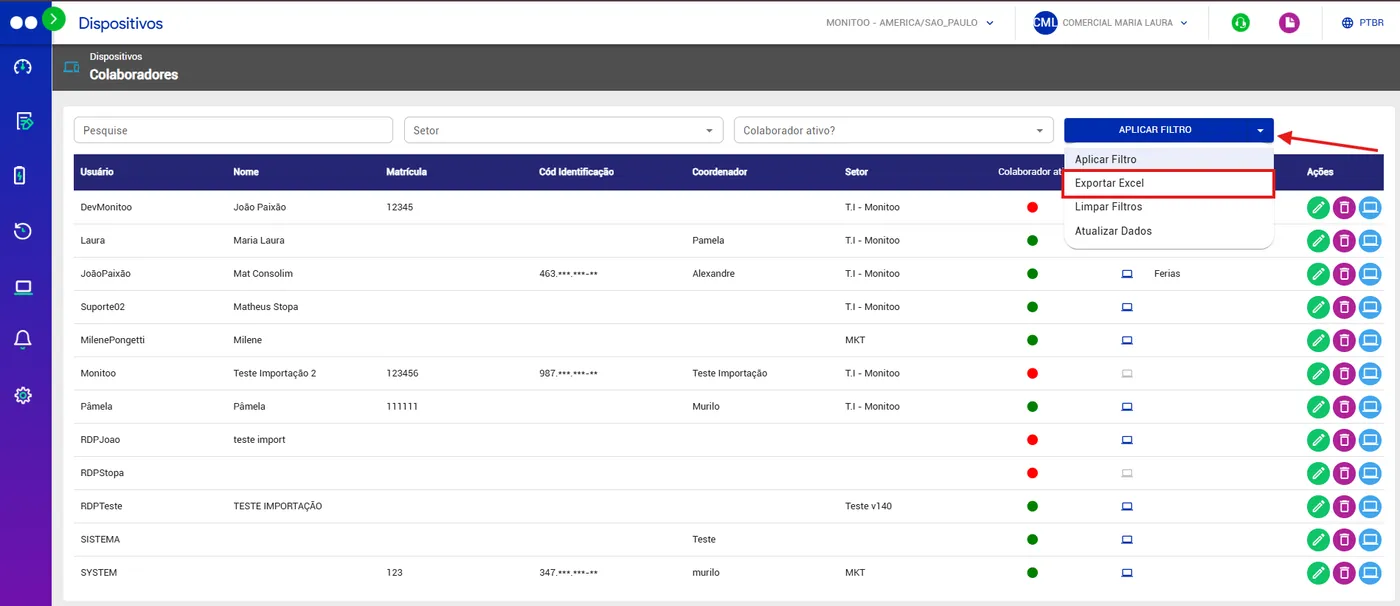
After exporting the file, open the Excel spreadsheet and fill in or change the desired information.
It is currently not possible to bulk change the following employee information:
User
Work Schedule
Work Schedule Start
Work Schedule End
Break Start
Break End
Last machine used
Last monitoring
Active employee?
After making your changes, save the file so it can be imported back into Monitoo.
Below are the fields that can be bulk changed:
Name
Employee ID
Identification code
Coordinator
Department (Must be written exactly as it is registered in Monitoo to avoid errors).
Job Title
Gross Salary
Net Salary
Hire Date
Termination Date
Status
For the import to work correctly, keep the format and structure of the spreadsheet exported by Monitoo.
You don’t need to create a new spreadsheet or change the file structure. Use the same exported file and make only the allowed changes.
After filling in the information in Excel, go back to Monitoo and import the file directly in the Employees section.
Monitoo will use the data entered in the spreadsheet to update the corresponding employee information.
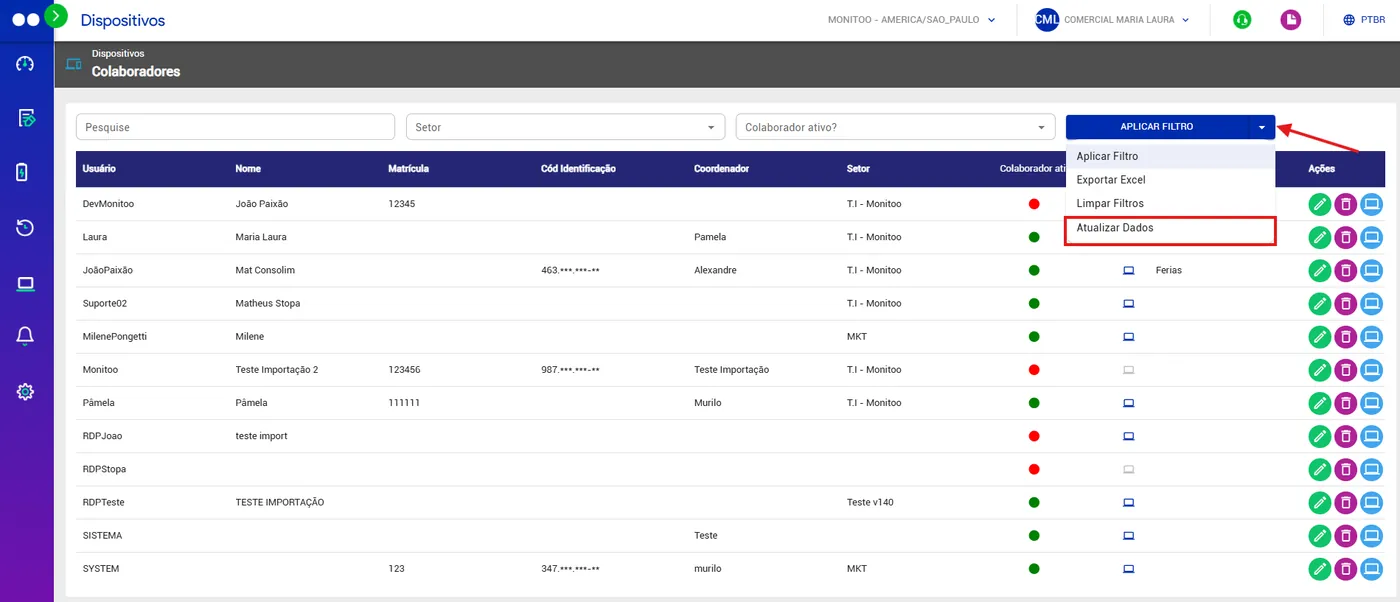
This process lets you make changes to multiple employees at the same time, making information management faster and easier.
Updating via spreadsheet is especially useful when you need to change information for several employees at once.
Instead of opening each employee individually, you can:
Export → Edit in Excel → Update Data
This makes the update process faster and more efficient, especially in companies with many registered employees.
Great! Thanks for your feedback.
Tell our team what was missing: contact support on WhatsApp.
